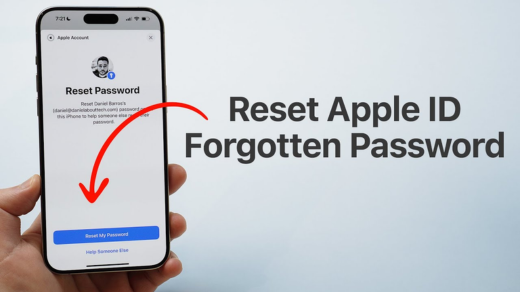
Forgetting your Apple ID password can be frustrating, but Apple provides multiple ways to reset it, including using your phone. Whether you have an iPhone, iPad, or another trusted device, you can regain access to your account quickly and securely. This guide will walk you through the step-by-step process of resetting your Apple ID password by phone, troubleshooting common issues, and ensuring your account remains secure.
Why Reset Your Apple ID Password?
Your Apple ID is essential for accessing Apple services like iCloud, the App Store, iTunes, FaceTime, and iMessage. If you forget your password or suspect unauthorized access, resetting it is crucial to:
Related: Effective Ways to Rejuvenate Your Lifestyle and Boost Your Health!
- Regain access to your Apple account.
- Protect your personal data from unauthorized users.
- Ensure seamless syncing across Apple devices.
FOR MORE : Understanding Apple.com/bill Charges
Methods to Reset Apple ID Password by Phone
There are two primary ways to reset your Apple ID password using your phone:
Related: Building a Practical Technology Guest Posting Strategy
- Using an iPhone or iPad (Settings App)
- Using Apple’s Account Recovery (If You Don’t Have Access to a Trusted Device)
We’ll cover both methods in detail.
Method 1: Reset Apple ID Password Directly from iPhone or iPad
If you have access to your iPhone or iPad, follow these steps:
Related: 10 Most Helpful Tips While Planning Your Destination Wedding
Step 1: Open Settings
- Unlock your device and go to Settings.
Step 2: Tap Your Apple ID Profile
- At the top of Settings, tap your name (Apple ID banner).
Step 3: Select “Password & Security”
Related: Personal Growth Is Counted As A Great Investment
- Scroll down and choose “Password & Security.”
Step 4: Tap “Change Password”
- If your device has a passcode, you’ll be prompted to enter it.
- Enter a new password and confirm it.
Step 5: Sign Back Into Apple Services
- After changing your password, you may need to sign back into iCloud, the App Store, and other Apple services.
Note: This method only works if you remember your current password. If you’ve forgotten it, proceed to the next method.
Related: The Best Crypto Exchanges for Perpetual Contracts
Method 2: Reset Apple ID Password via Account Recovery (If Forgotten)
If you don’t remember your password, you can reset it using Apple’s account recovery process.
Option A: Using a Trusted Phone Number
- Go to Apple’s Password Reset Page
- Open a browser on your phone and visit: Apple official website.
- Alternatively, on an iPhone/iPad, you can go to Settings > [Your Name] > Password & Security > Change Password > Forgot Password?
- Enter Your Apple ID
- Type in your Apple ID email address and tap “Continue.”
- Select “Reset Password”
- Choose the option to reset your password.
- Choose a Trusted Phone Number
- Apple will send a verification code to your trusted phone number.
- Enter the code when prompted.
- Create a New Password
- Follow the on-screen instructions to set a new, strong password.
You May Also Like- Peacock : Start Streaming Today with This Simple Login Guide Visit Peacocktv.com/tv
Option B: Using Account Recovery (If No Trusted Device Available)
If you don’t have access to a trusted device or phone number:
- Visit Apple official website.
- Enter your Apple ID and select “Continue.”
- Choose “Need help resetting your password?”
- Select “Start Account Recovery.”
- Follow the prompts to verify your identity (may take a few days for security checks).
Troubleshooting Common Issues
1. “No Trusted Phone Number Available”
- If your trusted number is no longer accessible, you’ll need to verify your identity via two-factor authentication recovery or contact Apple Support.
2. Verification Code Not Received
- Ensure your phone has a signal.
- Check for carrier delays (try SMS instead of iMessage if needed).
- Request a new code if it expires.
3. Apple ID Locked for Security Reasons
- If too many incorrect attempts were made, wait 24 hours before trying again.
4. Forgotten Apple ID Email
- Visit Apple official website and select “Look it up” to recover your Apple ID.
Tips for a Strong Apple ID Password
- Use at least 12 characters with a mix of letters, numbers, and symbols.
- Avoid common words or personal information.
- Enable two-factor authentication for extra security.
You May Also Like- Peacock : Start Streaming Today with This Simple Login Guide Visit Peacocktv.com/tv
Conclusion
Resetting your Apple ID password by phone is a straightforward process if you follow the correct steps. Whether you use your iPhone’s Settings app or Apple’s account recovery, you can regain access to your account quickly. Always ensure your trusted phone number is up to date to avoid future lockouts.
If you encounter difficulties, Apple Support is available for further assistance. By keeping your password secure and updated, you can enjoy seamless access to all Apple services.